Amazon links in this article are affiliate links. As an Amazon associate, I earn from qualifying purchases.
Quick Summary
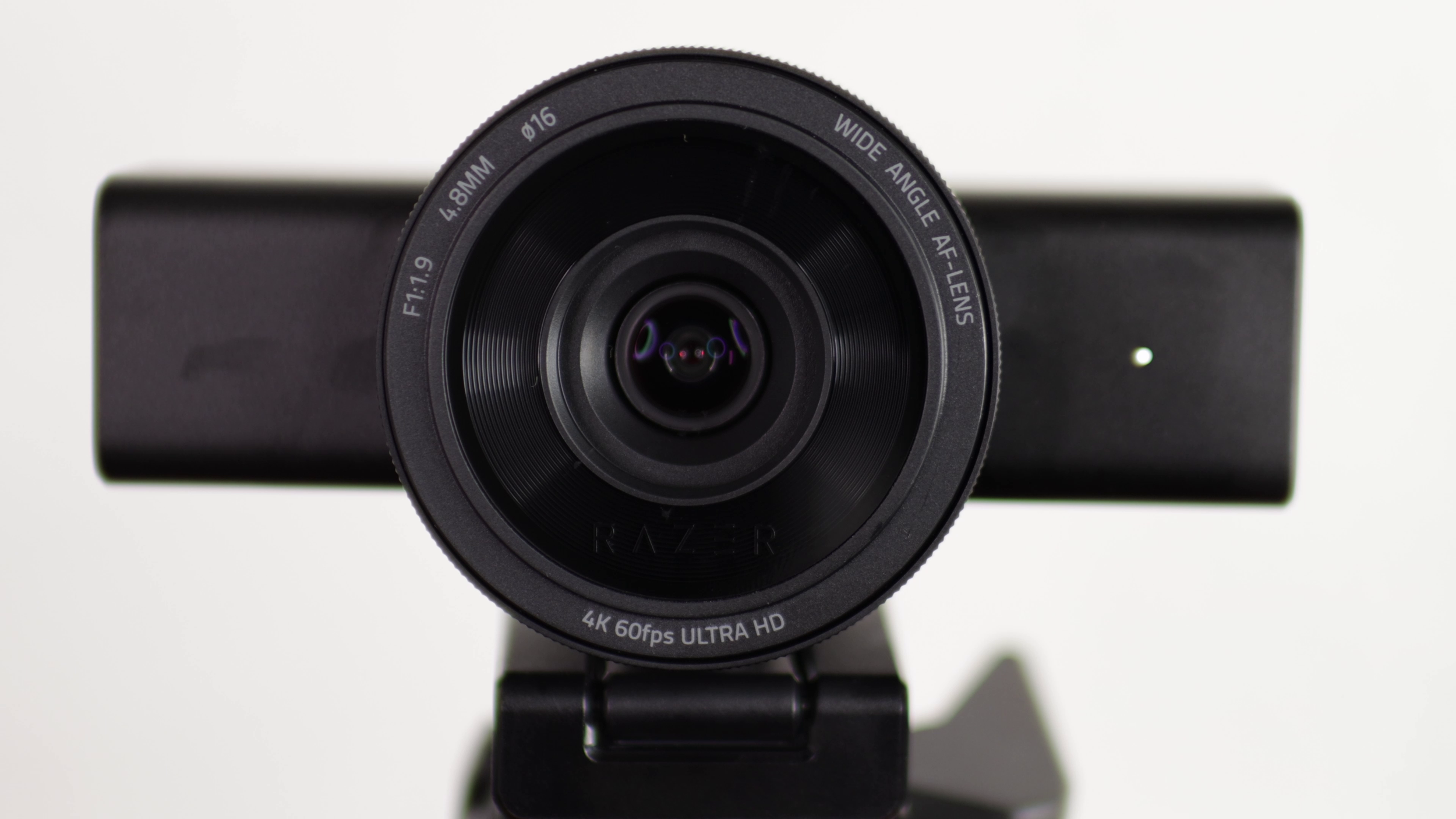
The Kiyo V2 Pro is Razer’s first 4K 60 FPS webcam. However, from an optics perspective, it’s much worse than their previous flagship, the Kiyo Pro Ultra. The colors and sharpness are meh, and there’s no bokeh to speak of.
If you need something with smooth 60 FPS, consider this. Otherwise, it costs way too much for what it is.
Specifications
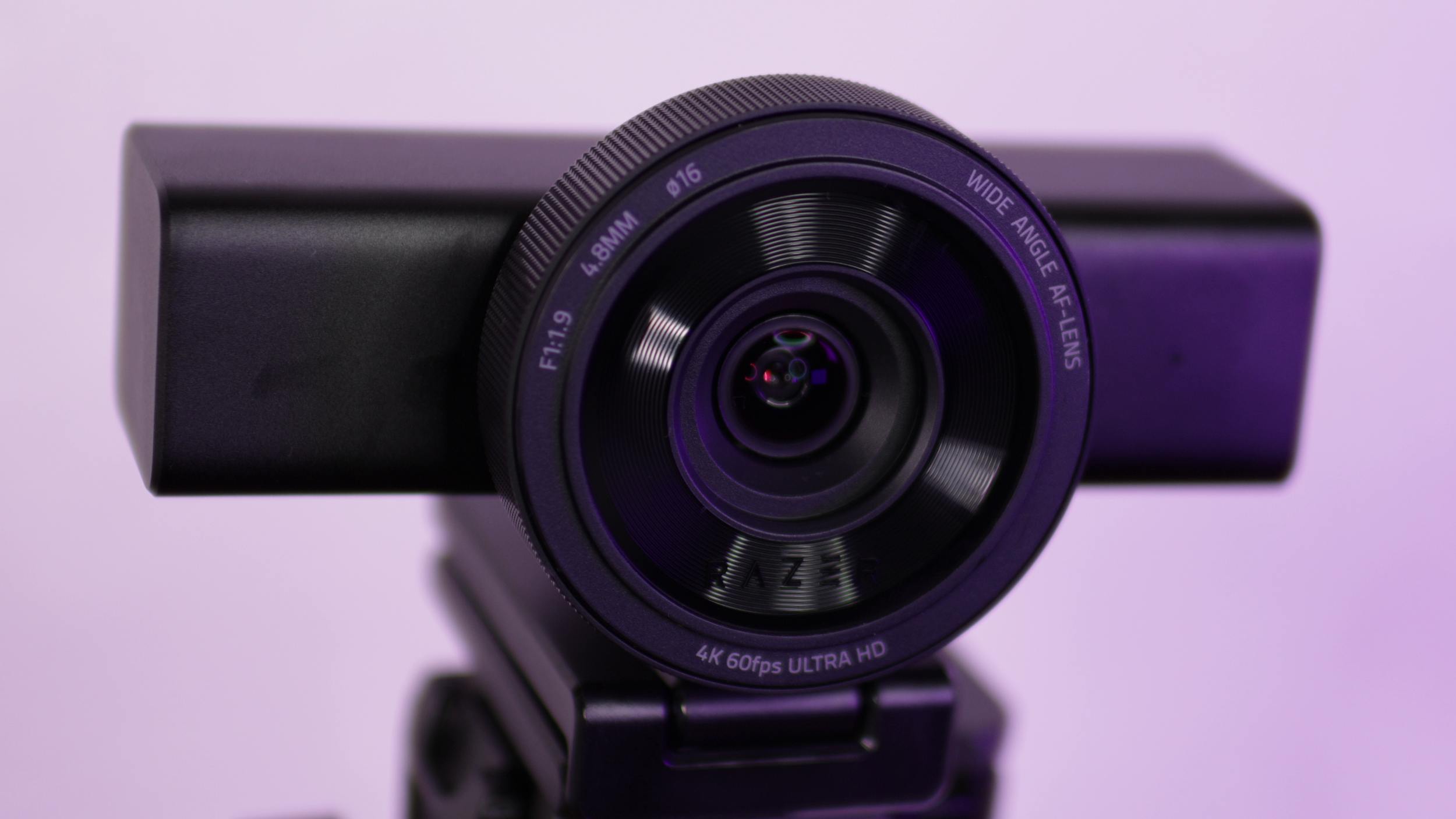
Max frame rate and resolution: 4K 60 FPS
Video format: MJPEG
Sensor size: (not officially listed by Razer)
Aperture: f/1.9
Focal length: 4.8 mm (24 mm full frame equivalent)
1/4 inch tripod threading: ✅
Image Quality
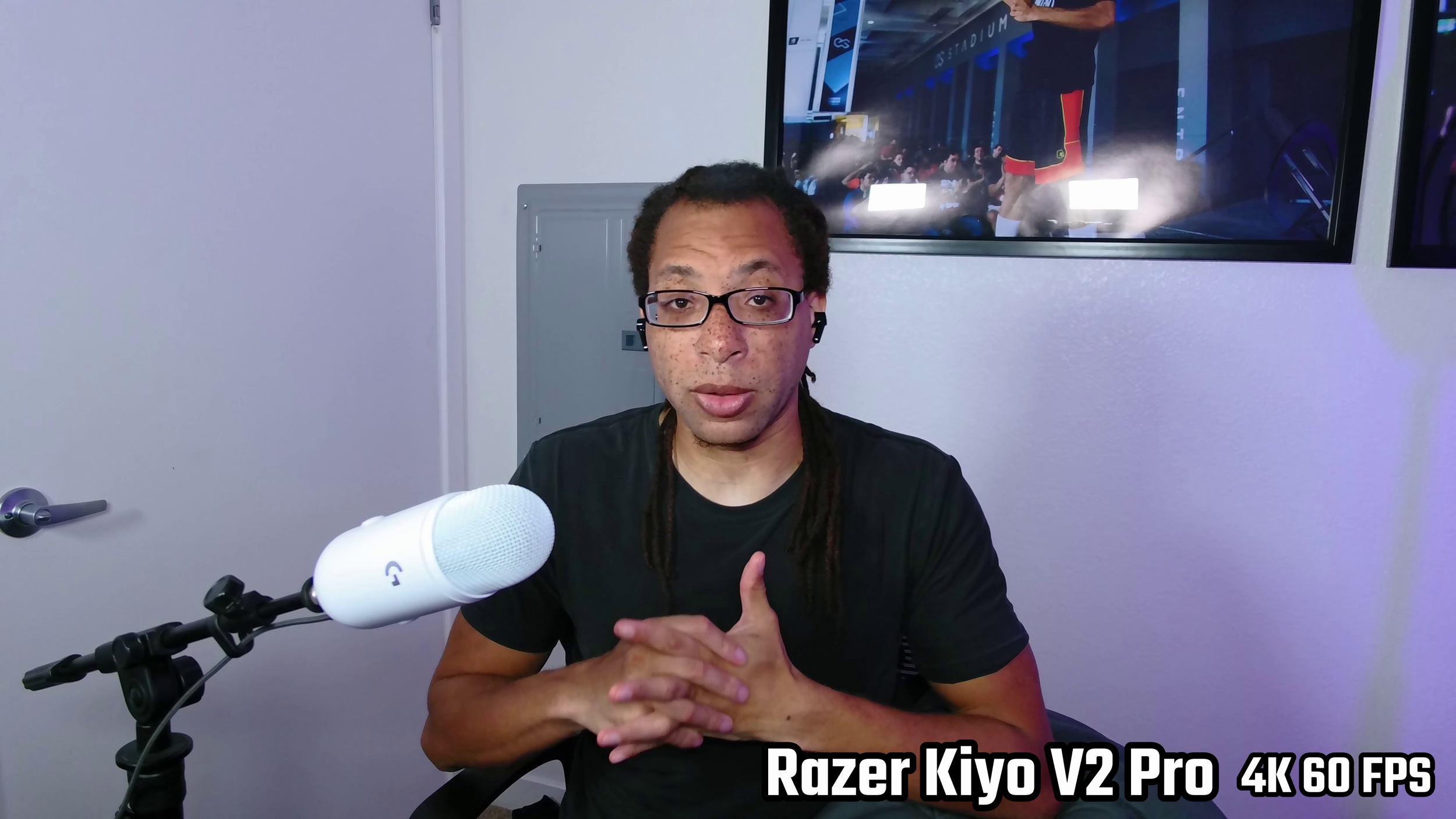
The Kiyo Pro V2’s detail and clarity is worse than the Kiyo Pro Ultra. It’s about on par with the OBSBOT Tiny 3, but worse than the Insta360 Link 2 Pro. The grain is quite high, and the textures aren’t clean and sharp.
Some positives: the autofocus is much more consistent than the Kiyo Pro Ultra and the fisheye lens effect is gone.
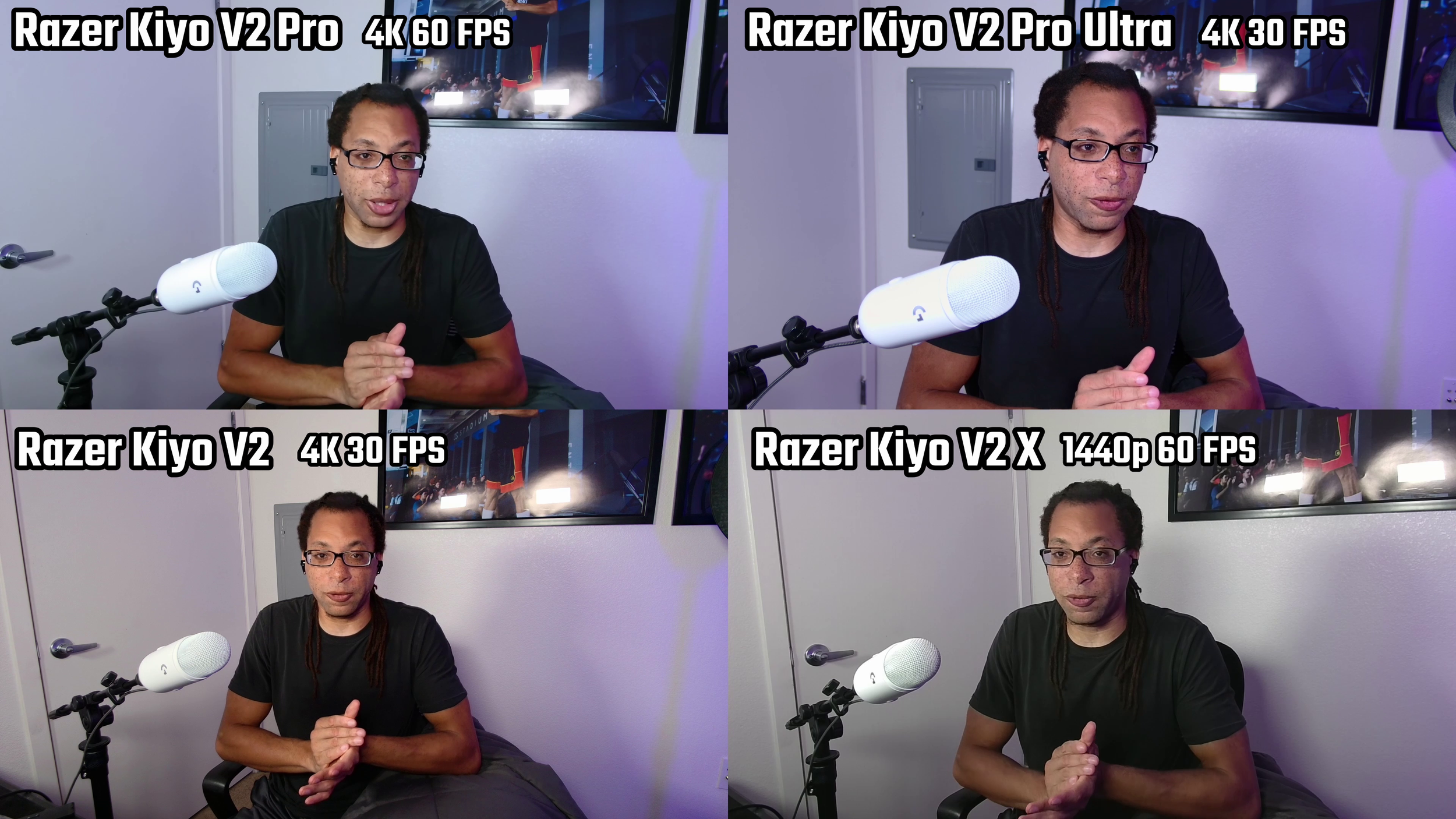
The colors out the box aren’t very good, but with manual adjustments, they can be improved dramatically. The main weakness isn’t the color accuracy, but the contrast. The dynamic range is very weak, so highlights blow out easily as you can see by the hotspots on my face and the overexposed microphone.
Low Light
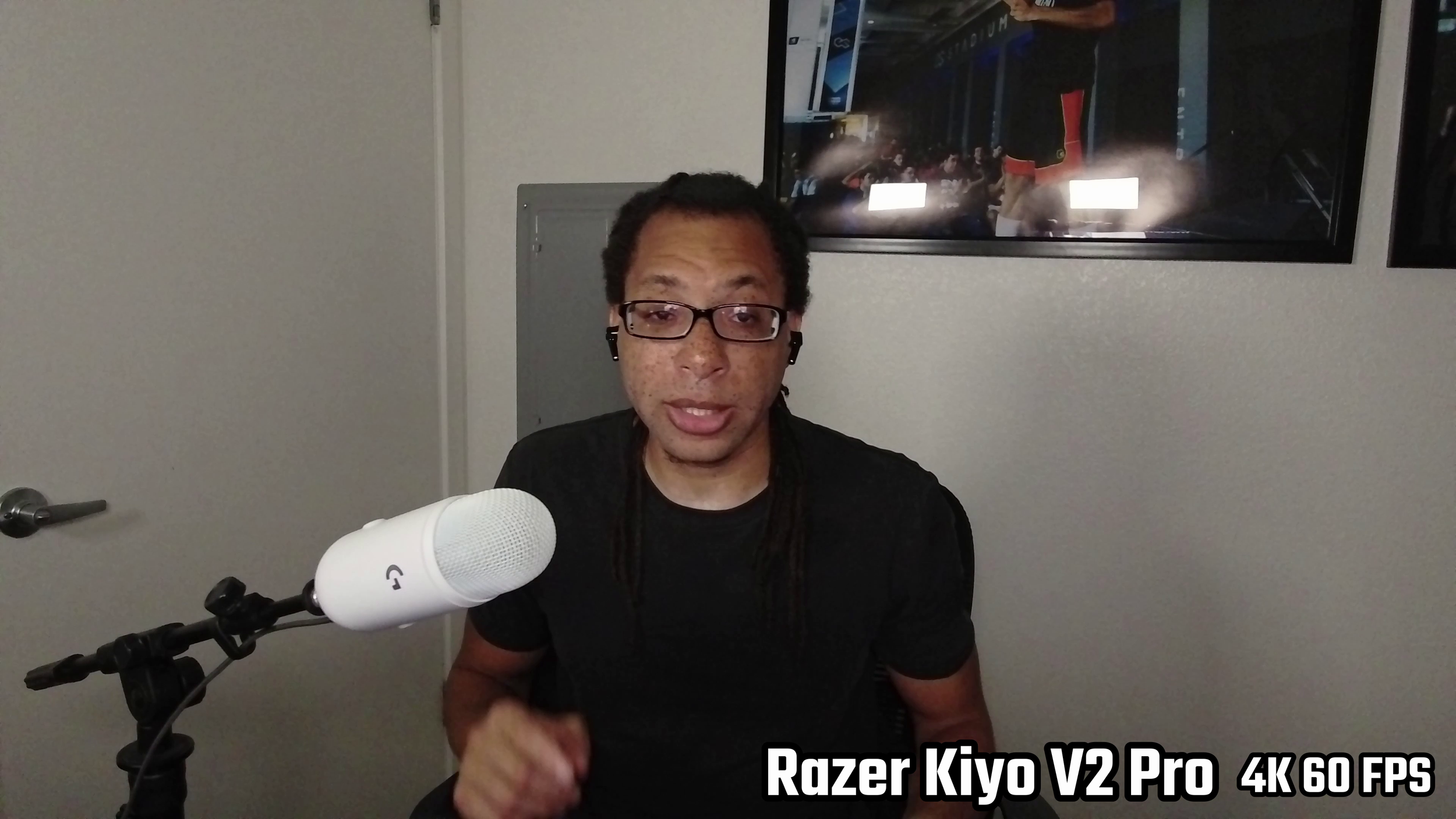
Low light
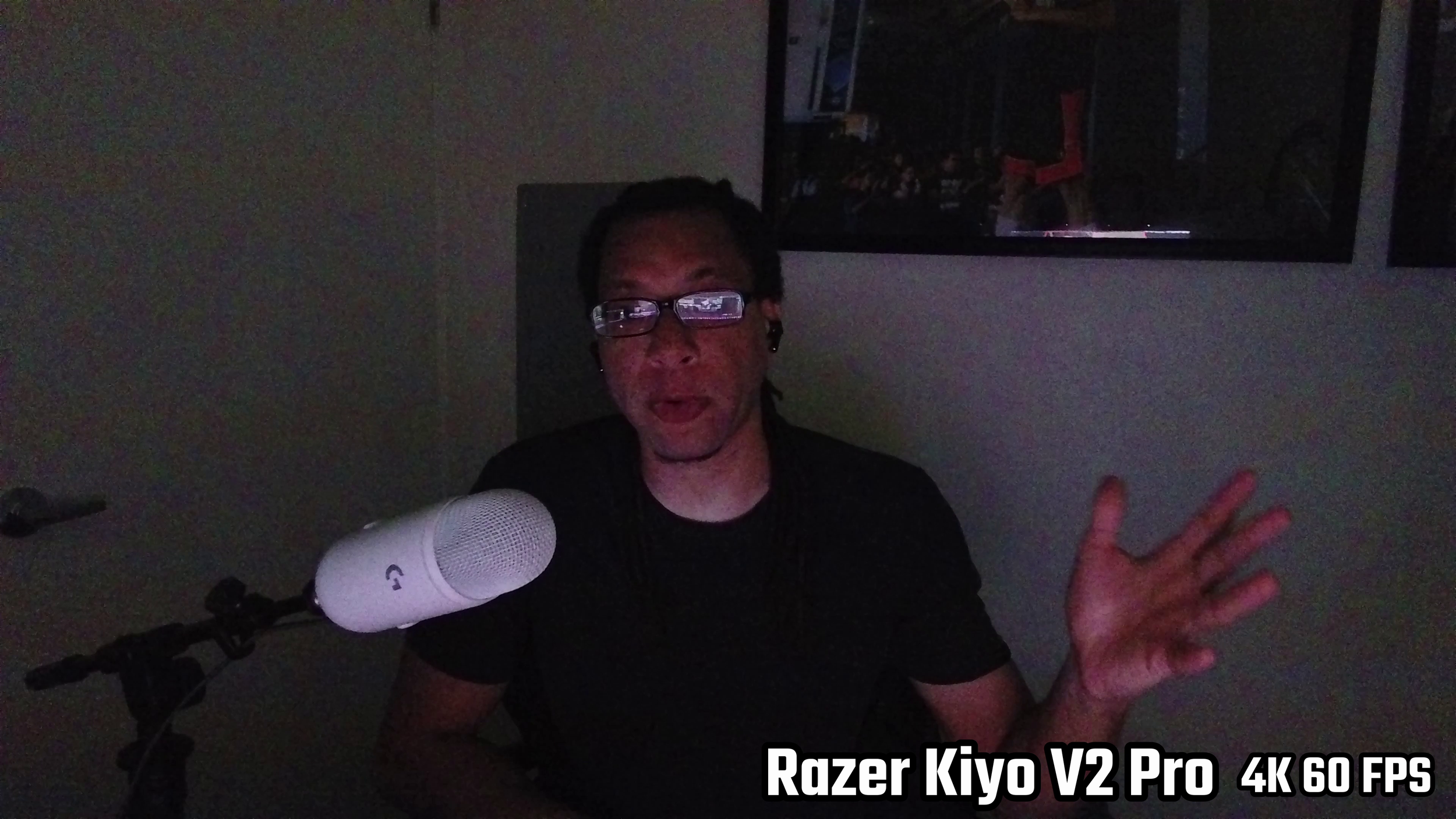
Ultra low light (monitor lighting only)
Mostly just adding this footage because it’s highly requested. Low light is always going to be a disaster on webcams.
HDR
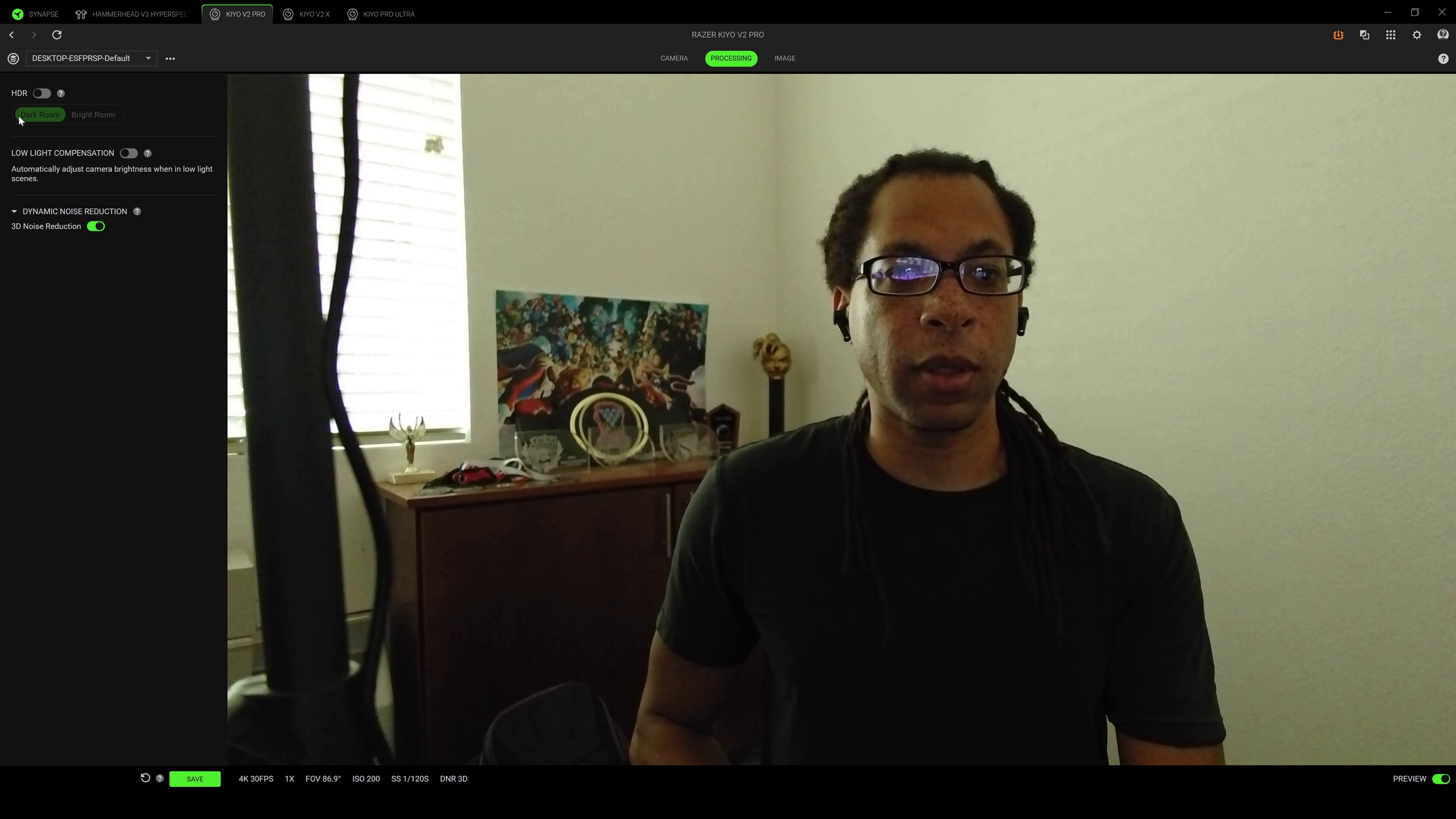
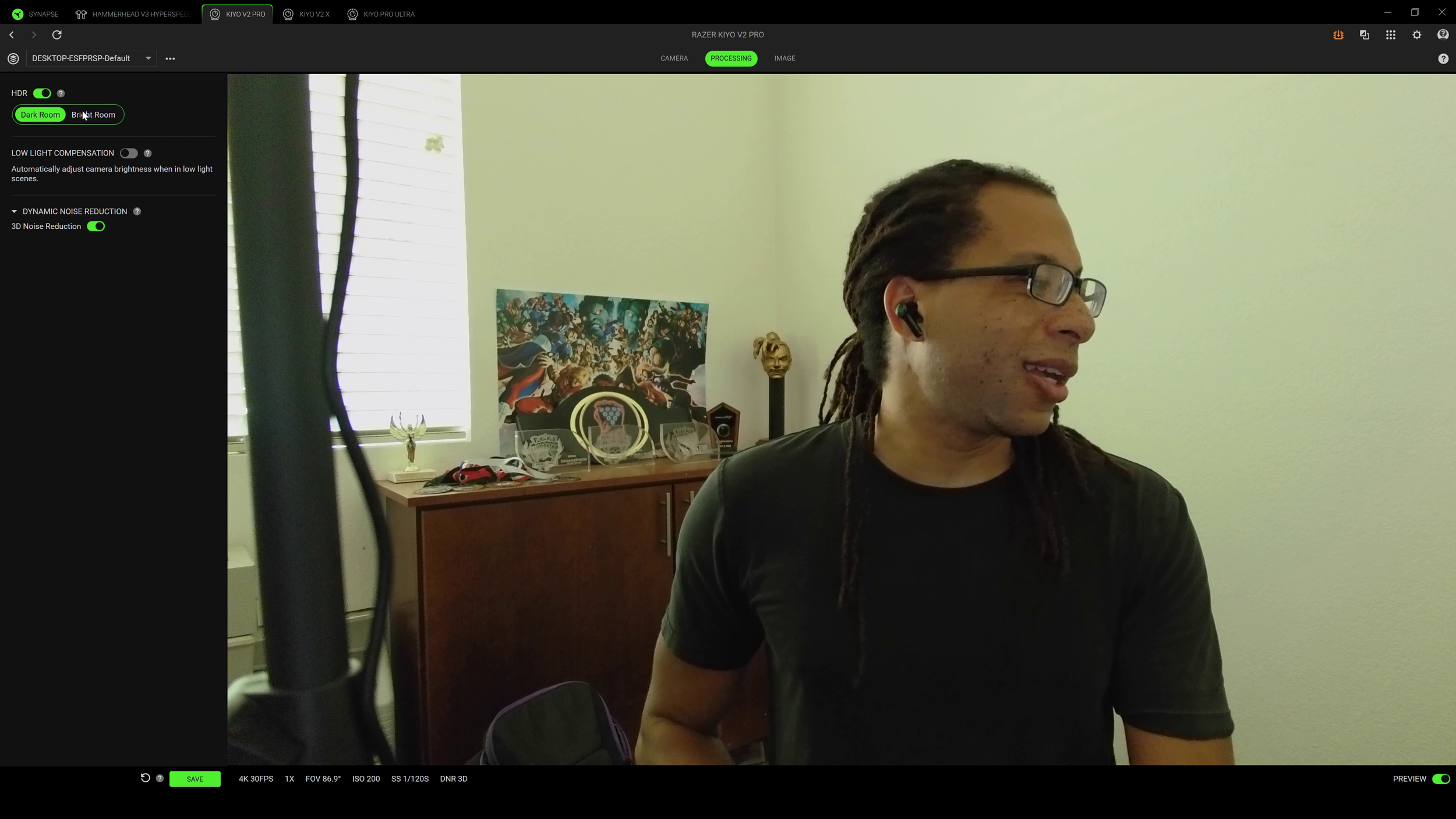
The HDR option limits the frame rate to 30 FPS, but it can help in scenes where lighting is behind you. The amount of smearing that gets added isn’t worth it to me. It’s much better to invest in a light to place in front of you or to re-arrange your setup so that your light sources faces you.
Software
Razer Synapse
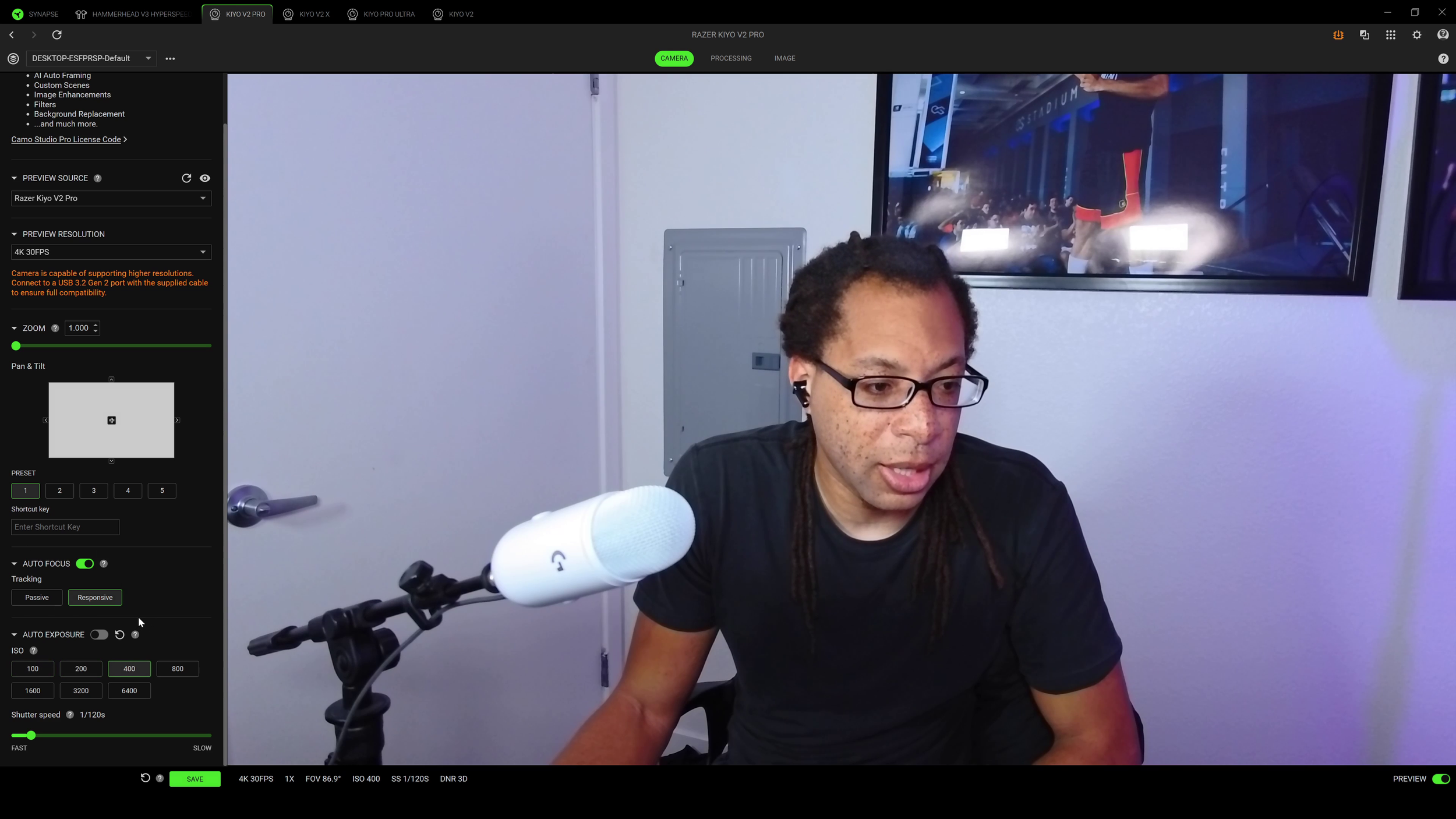
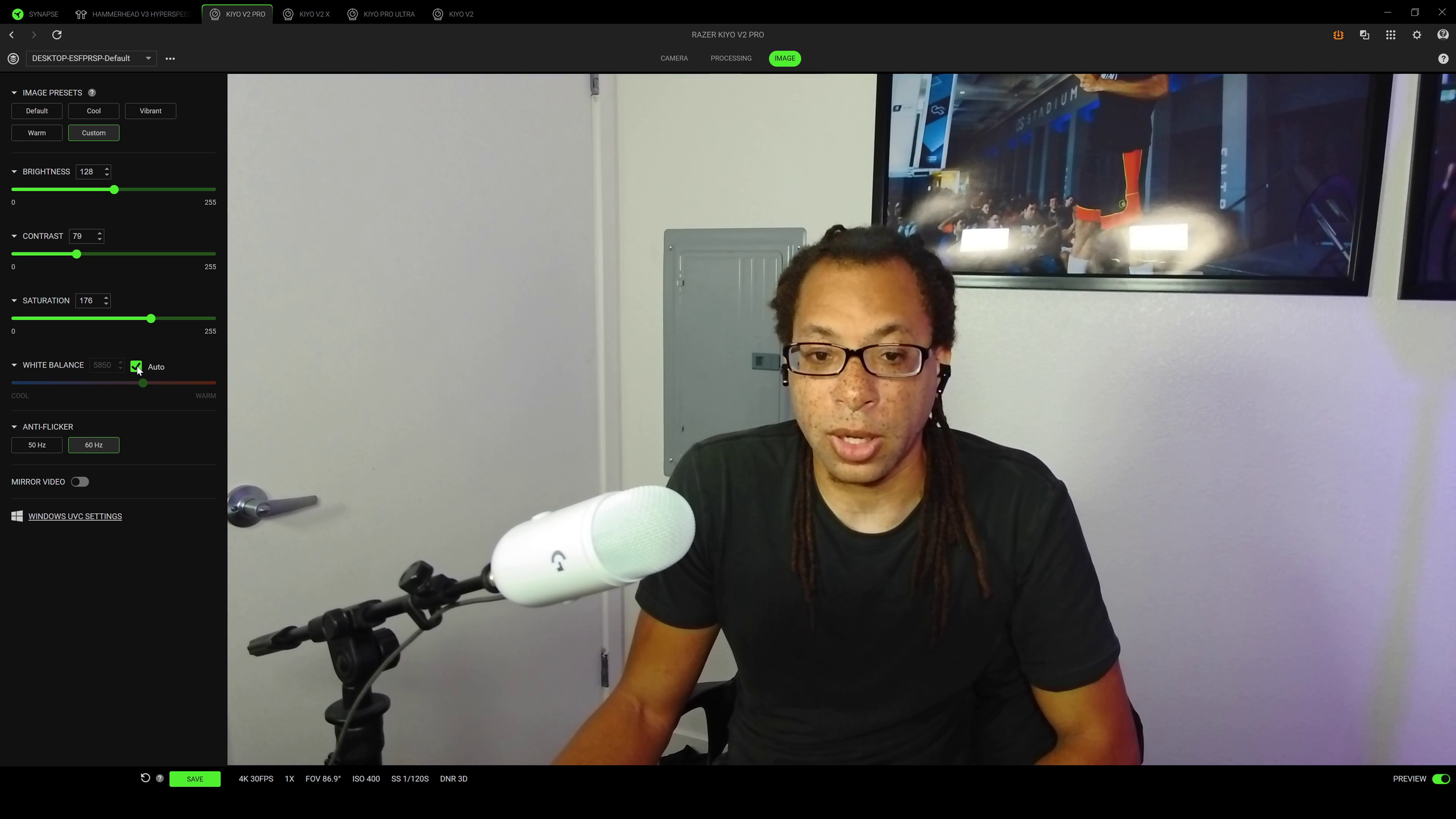
There are three ways to control the settings of the Razer Kiyo V2 Pro. The first is through UVC settings in software like OBS. The second is Razer Synapse.
As long as you have the preview window disabled in Synapse, you can make changes to the webcam even when it’s active in other software. Aside from the basic settings like shutter speed and white balance, you can toggle HDR, and toggle the noise reduction filter on or off.
Camo Studio
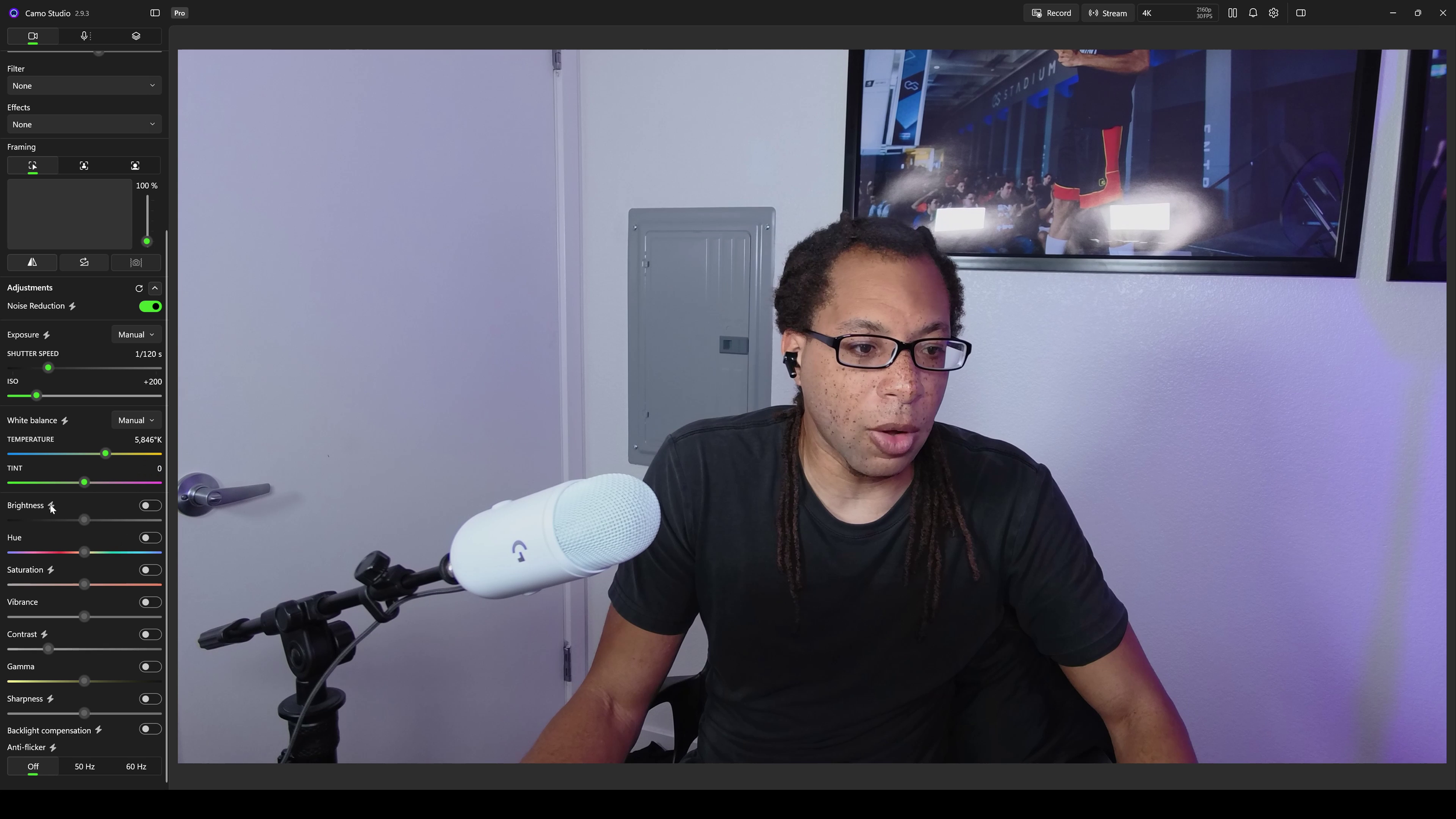
Inside Synapse, you’ll find a code to activate a “lifetime” subscription to Camo Studio which is the third way to control the Kiyo V2. If you try to activate this on another computer or even the same computer after re-installing Windows, the code will become inactive. That’s what happened to me.
To avoid this, you’ll have to link your Razer account with a Camo account. This is a pain, but at least it keeps track of your activation status.
Anyway, this software has a lot of potentially useful features, but using them defeats the whole point of the webcam. As of this writing, Camo Studio locks your webcam to 30 FPS maximum. 4K 60 FPS is the Kiyo V2’s biggest selling point, so this just sucks. Even after you close the software, the only way to unlock 60 FPS again is to unplug and reconnect the camera.
Build
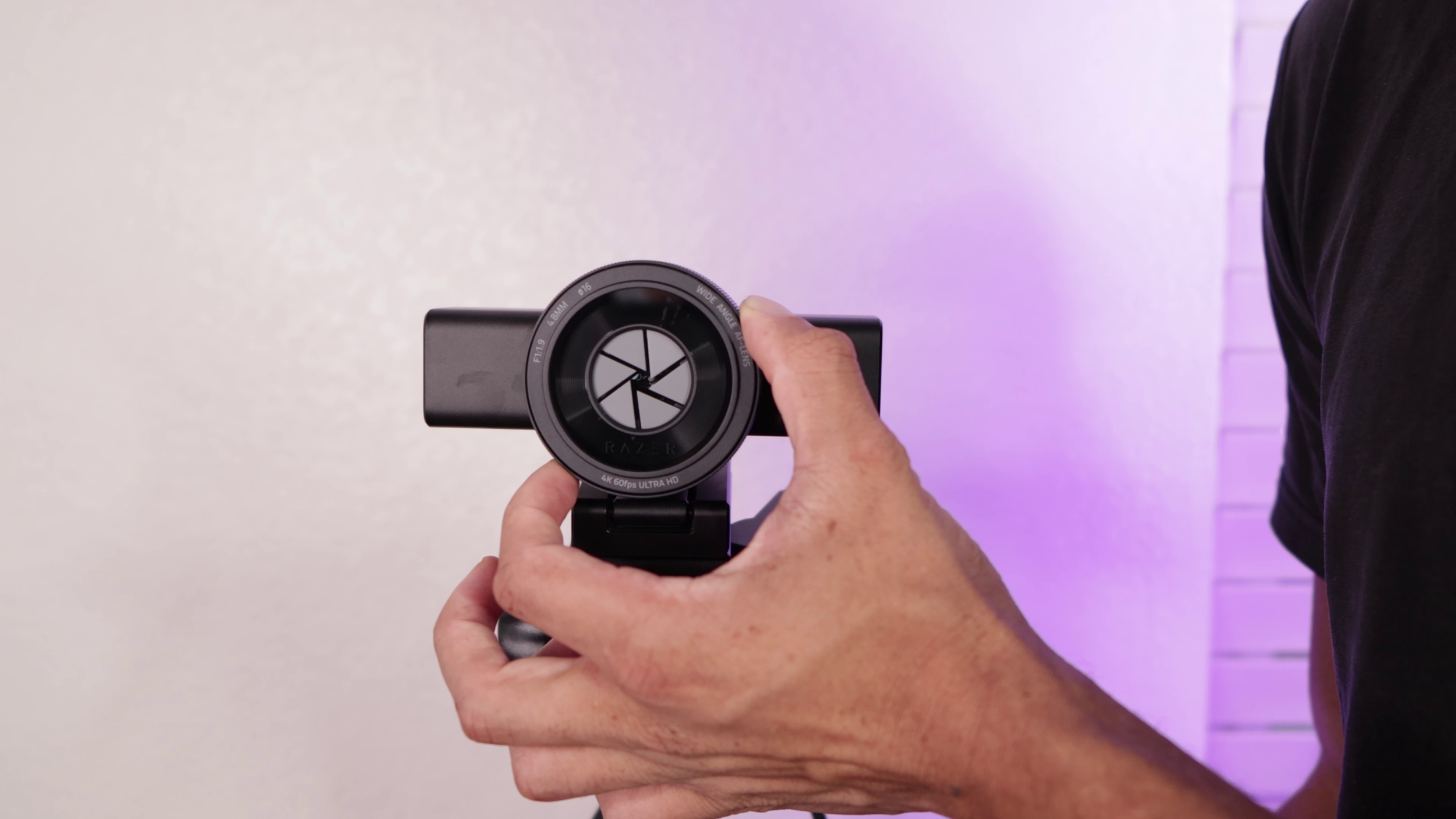
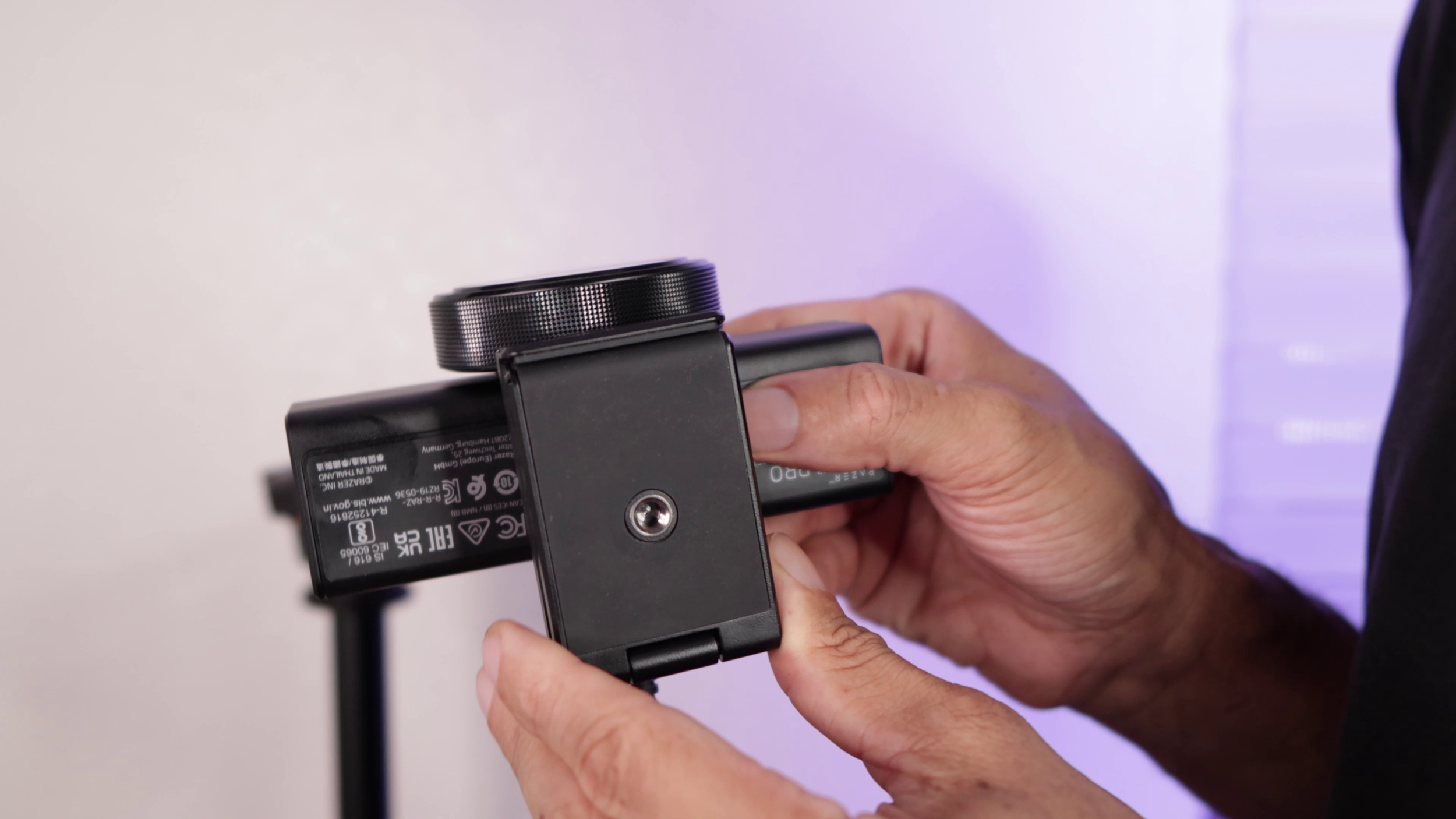
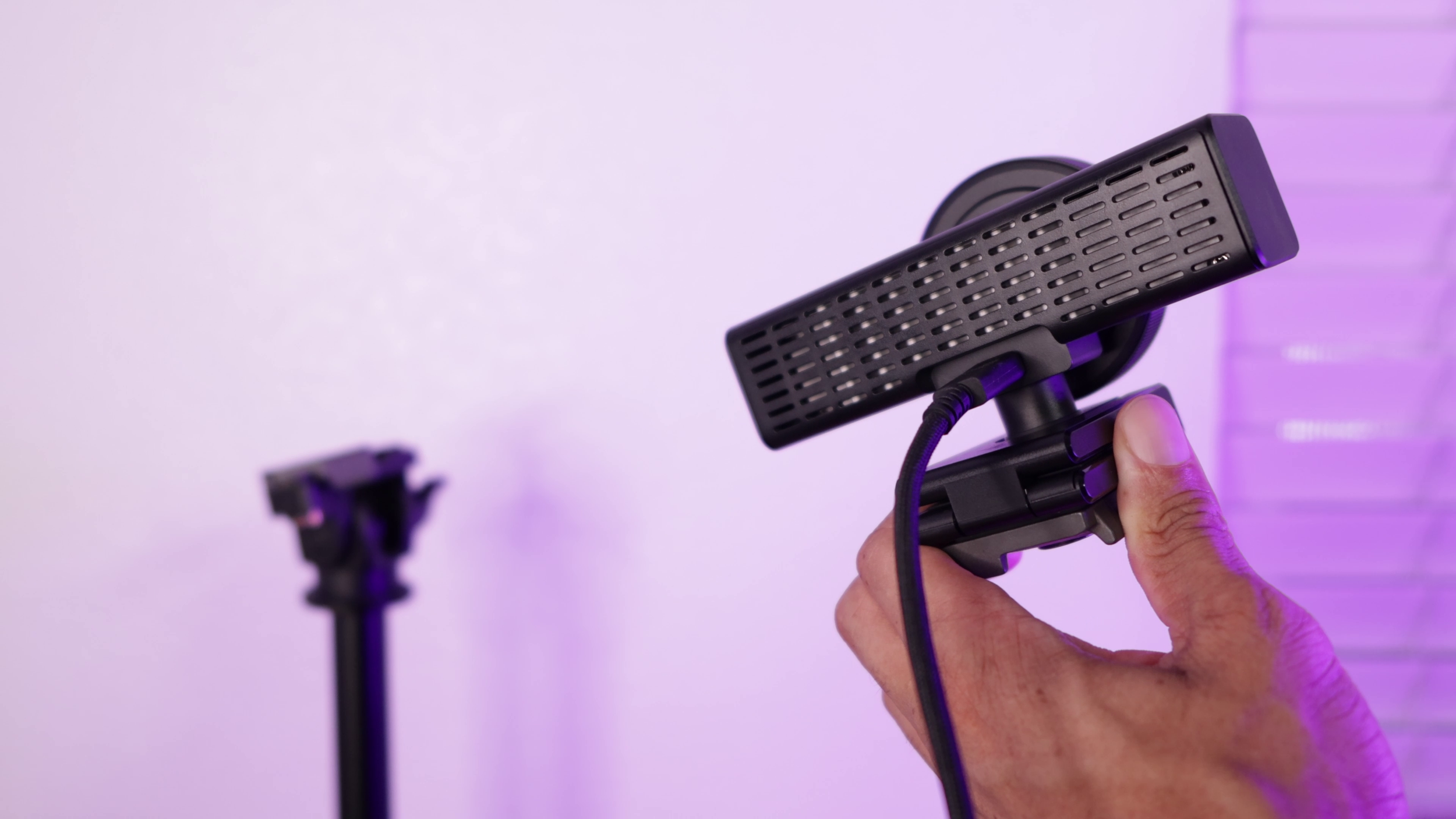
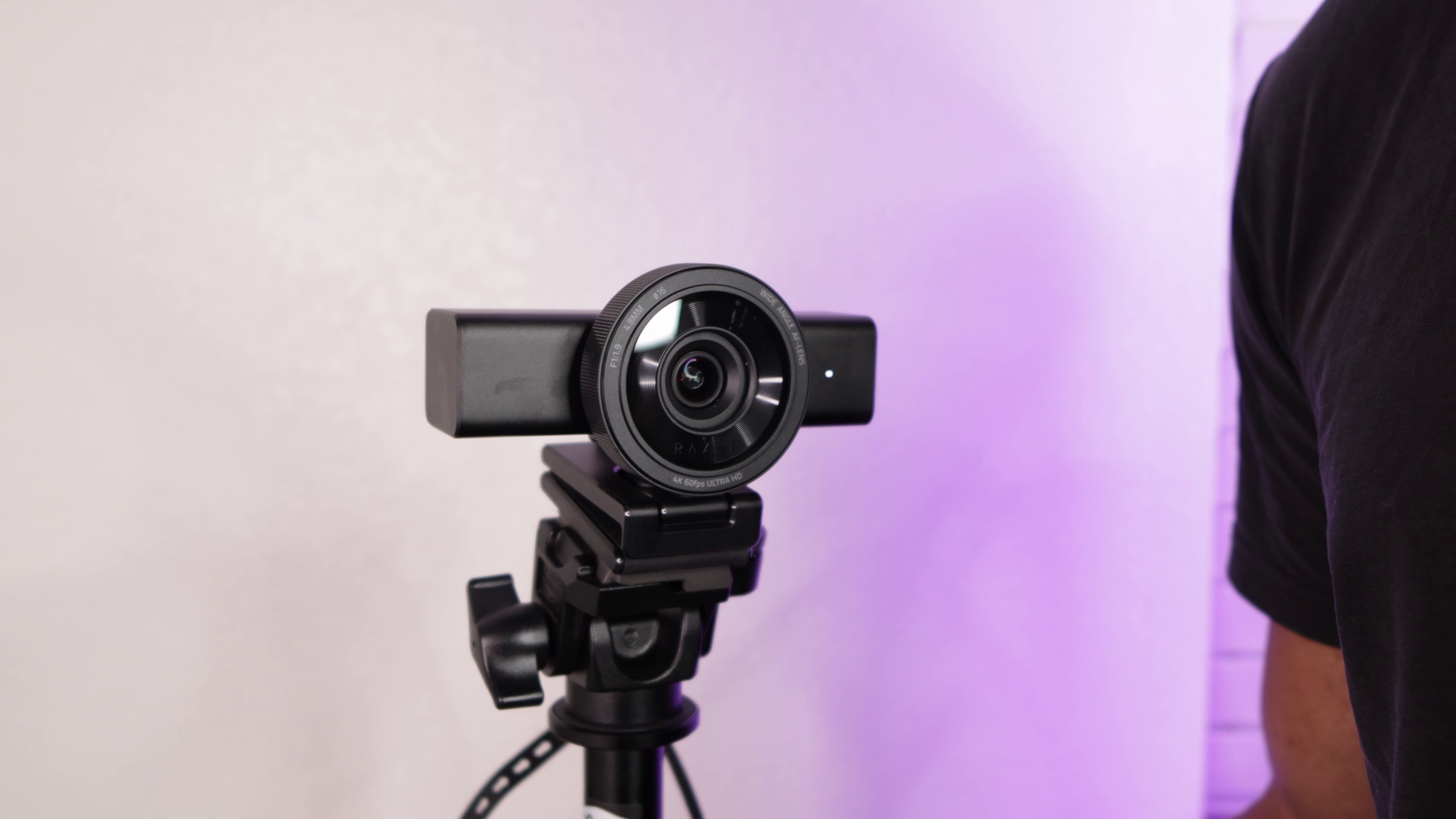
The build on this is hefty, sturdy, and versatile. There’s a privacy shutter that can be controlled by twisting the outside of the lens. 1/4-inch tripod threading is on the bottom of the monitor mount (non-detachable). You can adjust the device up and down and swivel it.
The detachable 78-inch cable is USB-C on both sides. There is no adapter included in the box. You’ll need USB 3.0 to get the fastest speeds on this.
Verdict
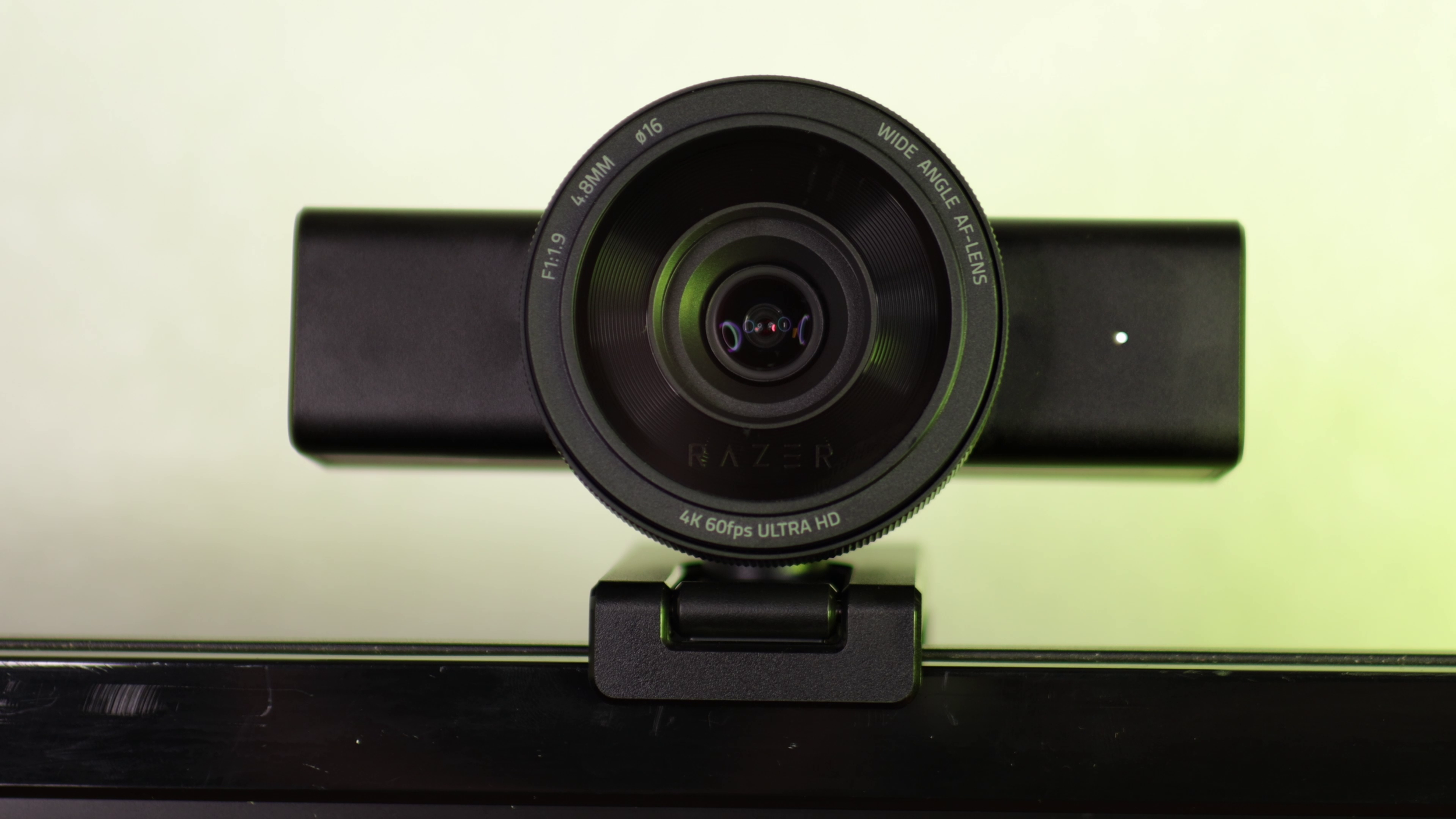
I do not recommend the Razer Kiyo V2 Pro. It simply costs way too much for its lackluster optics. If 4K 60 FPS is all you care about, consider saving the money and getting the Elgato Facecam 4K.
Alternatively, if you want the best webcam out at 4K 60 FPS and your budget is unlimited, I recommend the YOLOLIV YoloCam S7. Only get the Kiyo V2 Pro if you’re a hardcore Razer fan.